Appearance Settings
Customize the theme mode and accent color.
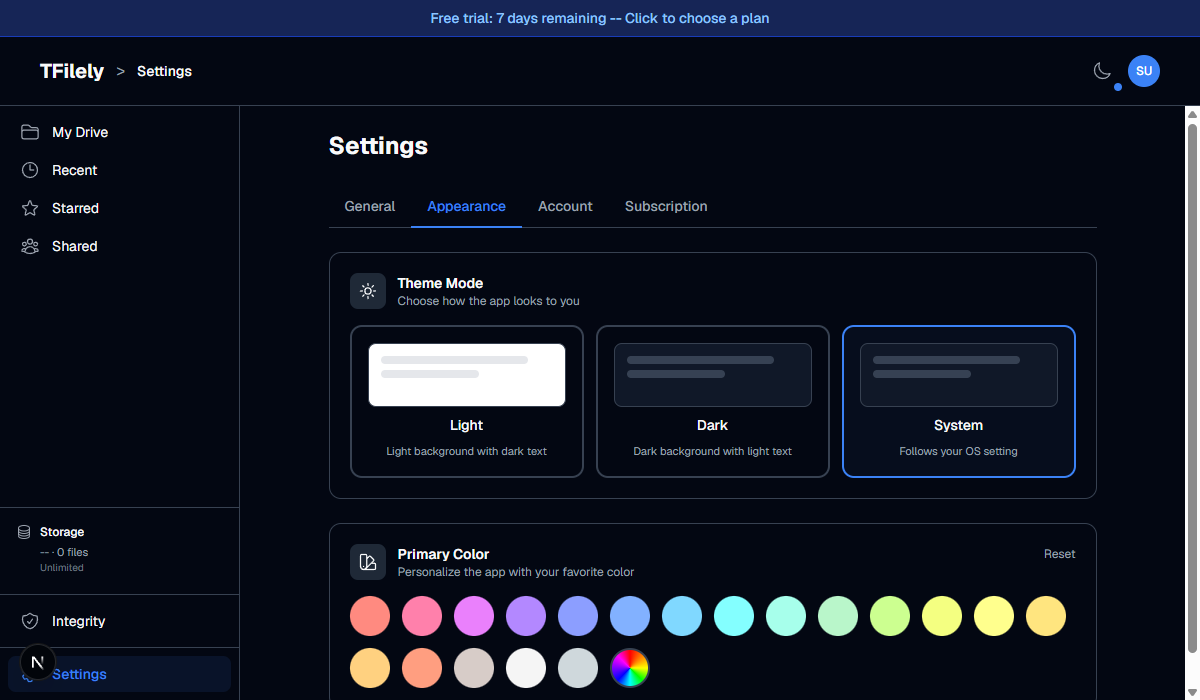
Theme Mode
Choose how TFilely looks:
Light
White background with dark text. Best for well-lit environments.
Dark
Dark background with light text. Easier on the eyes in dim lighting.
System
Automatically matches your operating system's theme preference.
Primary Color
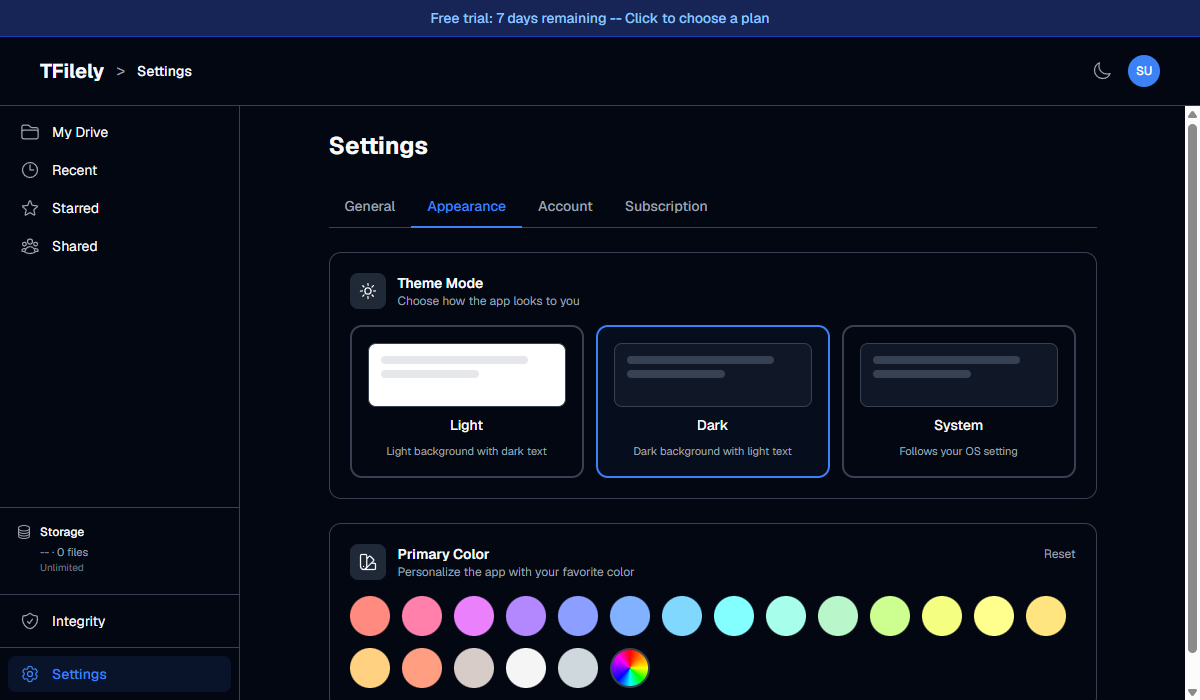
Choose an accent color that appears on buttons, links, active states, and other interactive elements. TFilely includes 19 preset colors. You can also enter a custom hex color code.
Click any color swatch to apply it instantly. The change is saved automatically and persists across sessions.
Reset Color
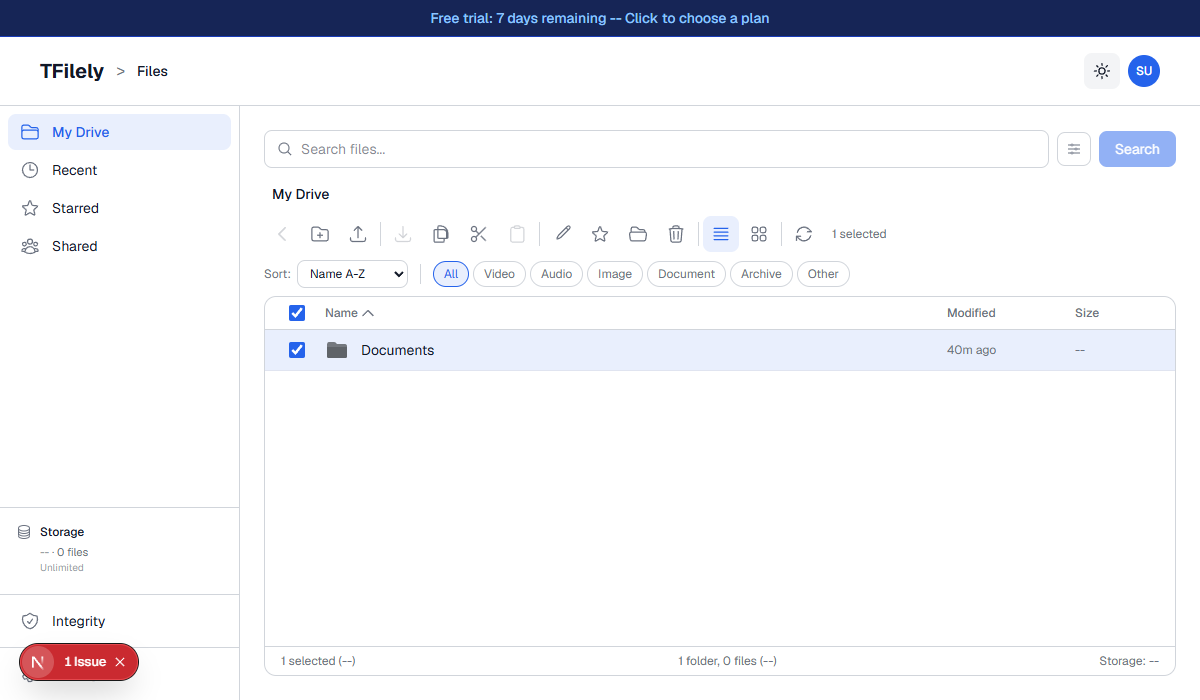
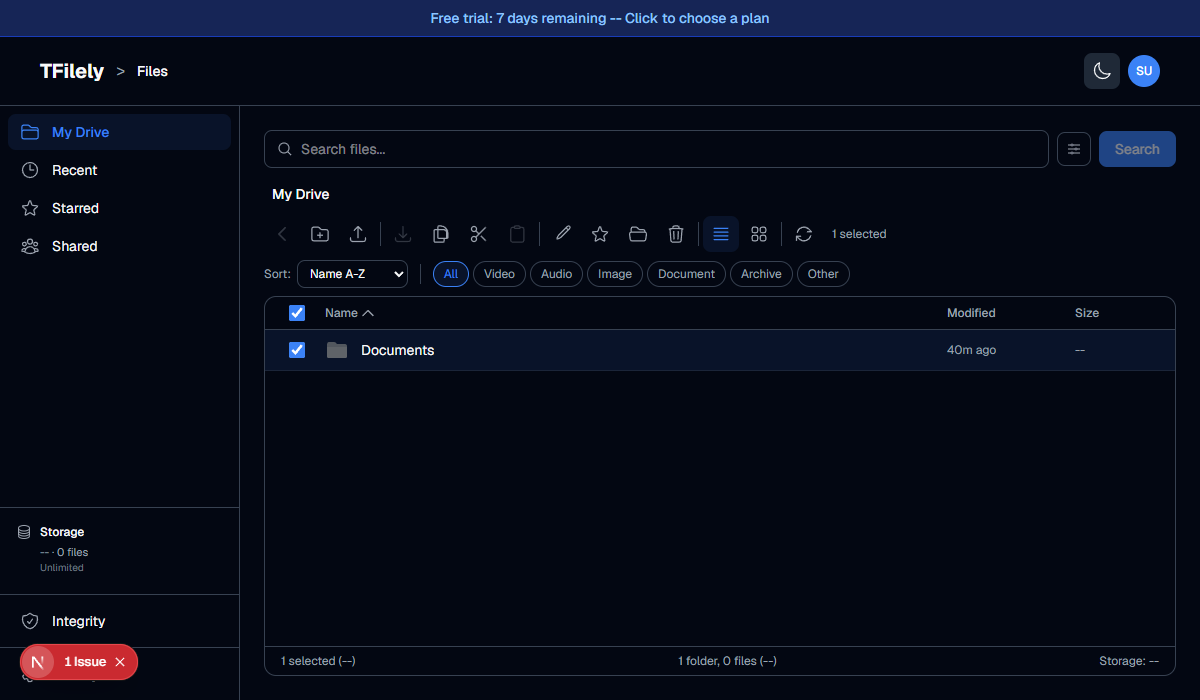
To reset the color to the default blue, click the Reset button next to the color picker. You can also toggle the theme mode from the header at any time using the sun/moon icon.