Duplicate Handling
How TFilely handles name conflicts during uploads, copy/paste, and move operations.
Overview
When you upload, copy, or move a file into a folder that already contains a file with the same name, TFilely shows a conflict dialog. You choose how to handle each duplicate before the operation continues.
The Conflict Dialog
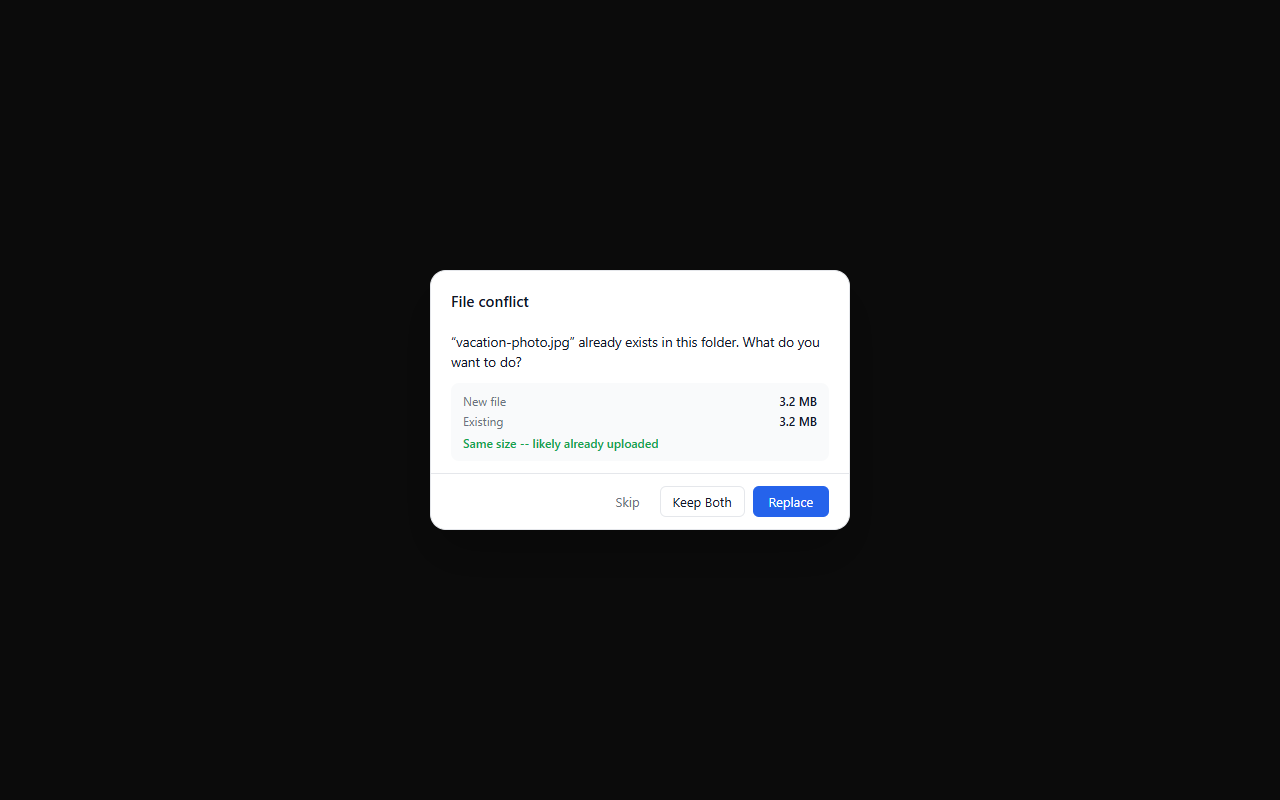
The conflict dialog tells you which file already exists and gives you three options:
| Option | What happens |
|---|---|
| Skip | The incoming file is not copied, moved, or uploaded. The existing file stays untouched. |
| Keep Both | The incoming file is renamed automatically. For example, photo.jpg becomes photo (1).jpg. If that name also exists, it increments to photo (2).jpg, and so on. |
| Replace | The existing file is deleted and replaced by the incoming file. |
The dialog also shows a size comparison between the new and existing file. If the sizes match, a green hint reads “Same size -- likely already uploaded.” If the sizes differ, an orange hint reads “Different size -- likely a different version.”
If the existing item is a folder, the Replace button changes to Merge, which combines the contents of both folders.
Batch Conflicts
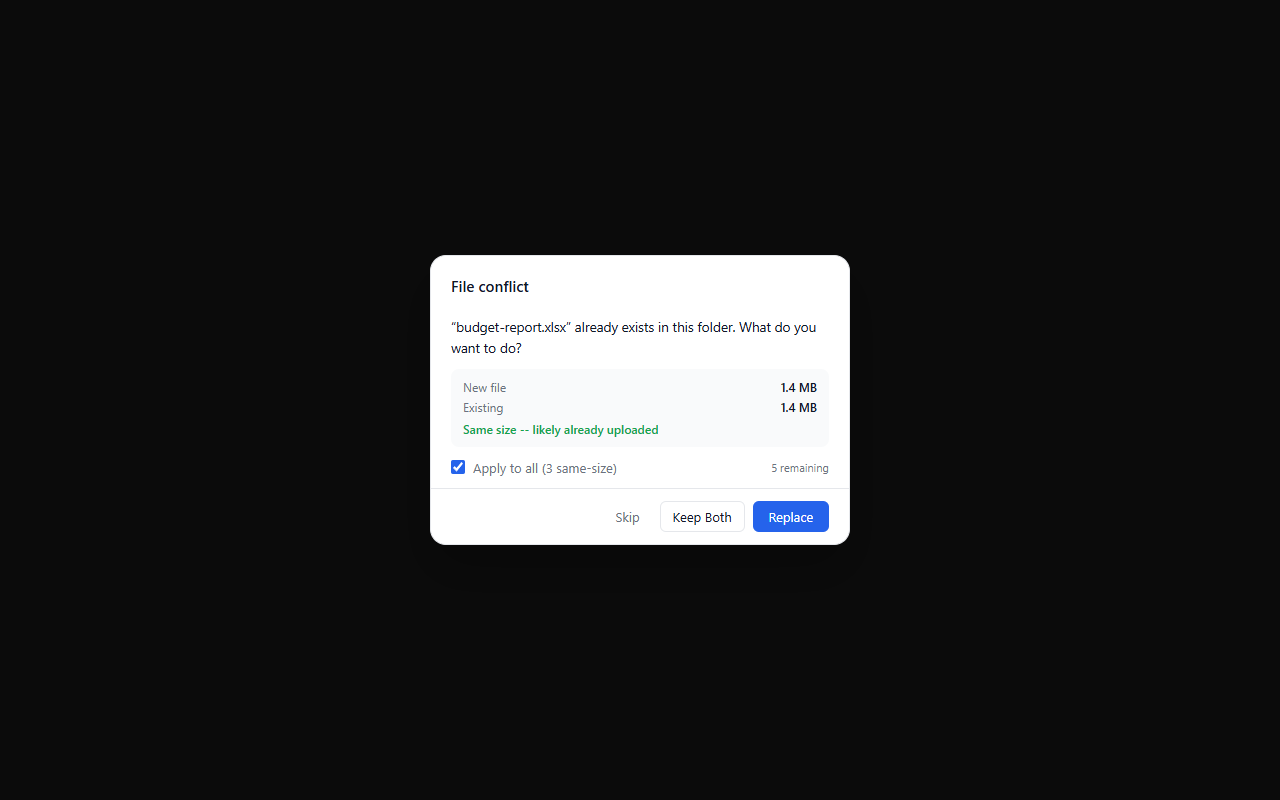
When multiple files conflict at once, an Apply to all checkbox appears along with a counter showing how many conflicts remain (e.g. “5 remaining”).
Apply to all is size-aware: it only applies your choice to remaining conflicts that share the same size-match status as the current file. For example, if the current conflict is a same-size duplicate and you check Apply to all then click Skip, only the other same-size duplicates are skipped. Any conflicts where the file sizes differ (updated versions) are left unresolved, and the dialog advances to the next one so you can decide separately.
When Apply to all is checked and only a subset of remaining conflicts match, the label updates to show the count (e.g. “Apply to all (3 same-size)”).
If you leave the checkbox unchecked, the dialog advances one file at a time so you can choose individually.
When Conflicts Are Checked
Duplicate detection runs automatically in these scenarios:
Uploading files
When you upload files (via the Upload button, drag-and-drop, or clipboard paste), TFilely compares each file name against the current folder. Matching names trigger the conflict dialog before the upload starts.
Copy and paste
When you paste files (Ctrl+V) into a folder, each pasted file is checked against the destination. If a file with the same name already exists (and is not the same file), the conflict dialog appears.
Cut and paste (move)
Moving files via Cut (Ctrl+X) and Paste works the same way. Conflicts are detected before any files are moved.
Name Matching
File name comparison is case-insensitive. Photo.JPG and photo.jpg are considered duplicates.
Tips
- Use Keep Both when you want to compare both versions before deciding which to keep.
- Use Apply to all with Skip to skip same-size duplicates in bulk. Files with different sizes (updated versions) will still be shown individually so you do not accidentally skip them.
- Folder uploads (drag-and-drop of a folder) check each file against its target subfolder. If a folder with the same name already exists, files inside it are compared individually.