Uploading Files
Three ways to upload files to TFilely.
Upload Methods
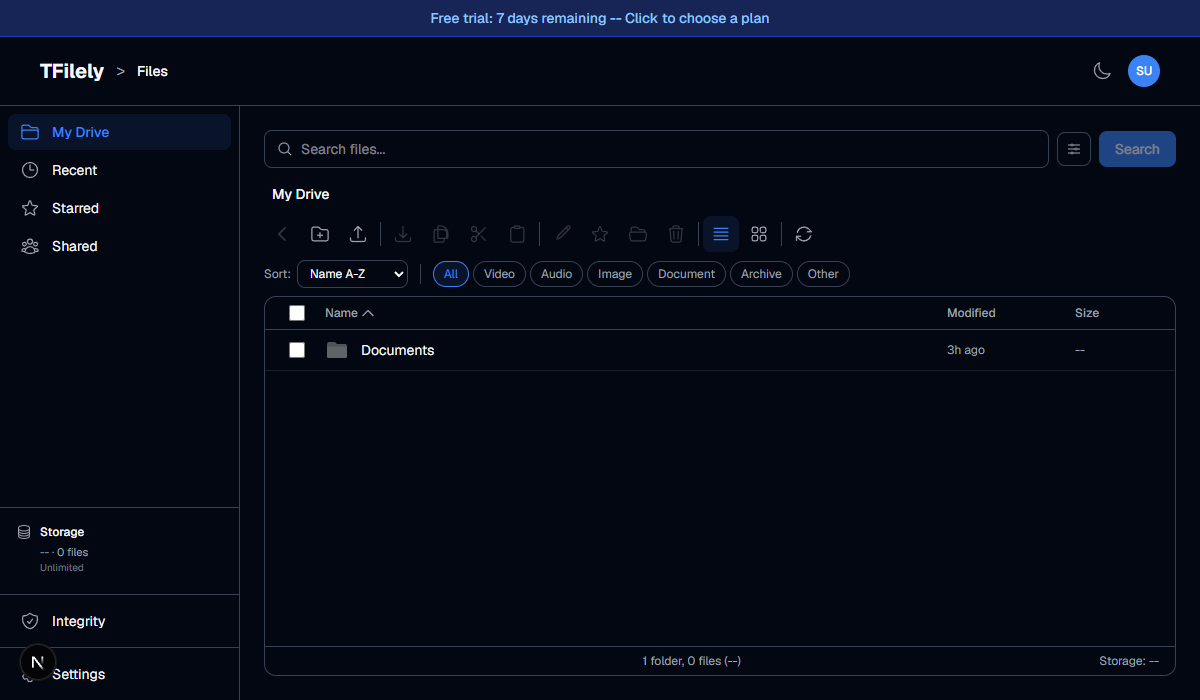
1. Upload Button
Click the Upload button in the toolbar. A file picker dialog will open. Select one or more files and click Open.
2. Drag and Drop
Drag files from your computer and drop them anywhere in the file area. A drop zone overlay will appear to confirm the target.
3. Paste
Copy a file to your clipboard and press Ctrl+V in the file area. The file will start uploading.
Upload Progress
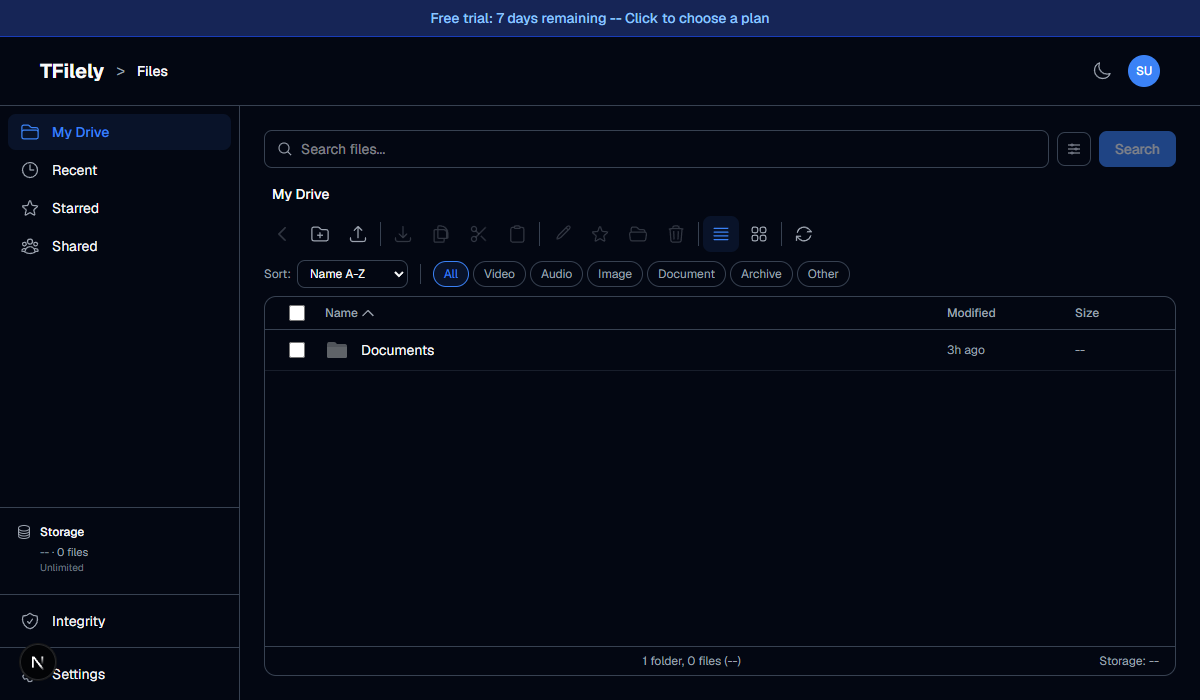
When files are uploading, a progress panel appears at the bottom of the screen. It shows:
- Overall progress bar and file count (e.g. 3/10 files)
- Total bytes uploaded out of total size
- Per-file upload percentage and file name
- Cancel button to stop individual uploads
- Cancel all button to stop every upload at once
- Pause/resume button to temporarily halt uploads between chunks
- Clear button to dismiss finished uploads from the panel
- Minimize/expand toggle to collapse or show the file list
Double-click the panel header to switch between normal and wide mode.
Duplicate Files
If you upload a file that has the same name as an existing file in the current folder, a conflict dialog appears. You can choose to skip, replace, or keep both files. See Duplicate Handling for details.
How Uploads Work
Large files are automatically split into chunks before uploading. Each chunk is uploaded separately through your active Telegram bot. On download, chunks are reassembled into the original file.
You can control the chunk size and number of concurrent uploads in Settings > General.
Upload Concurrency
By default, TFilely uploads 4 chunks at the same time. You can increase or decrease this number in Settings. Higher concurrency means faster uploads but uses more bandwidth and may trigger rate limits.