Context Menu
Access file and folder actions with a right-click.
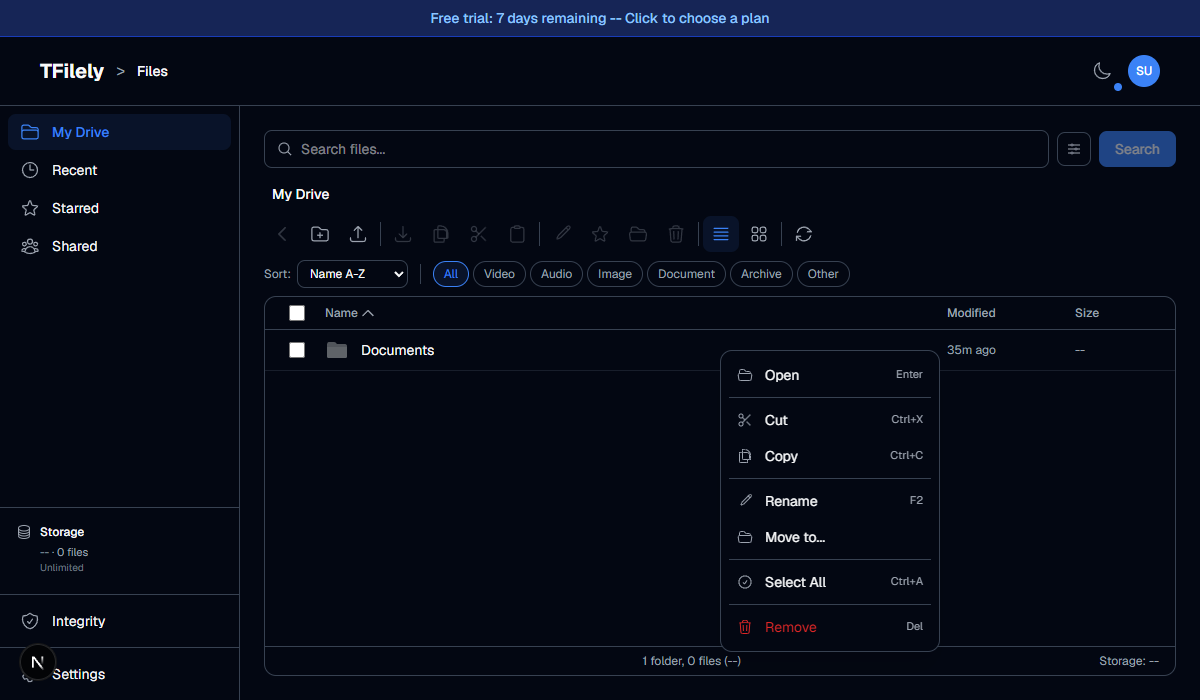
How to Open
Right-click on any file or folder to open the context menu. You can also right-click on empty space in the file area to see background actions like creating folders or uploading files.
File & Folder Menu Items
Right-clicking a file or folder shows the following items. Some items only appear for files or under certain conditions.
| Item | Shortcut | Description |
|---|---|---|
| Open | Enter | Open a file for preview or navigate into a folder |
| Cut | Ctrl+X | Cut for moving to another folder |
| Copy | Ctrl+C | Copy to clipboard for pasting |
| Paste | Ctrl+V | Paste previously copied or cut files (only shown when clipboard has items) |
| Rename | F2 | Change the file or folder name |
| Star / Unstar | -- | Toggle starred status for quick access |
| Move to... | -- | Move to a different folder using the folder picker |
| Select All | Ctrl+A | Select all files and folders in the current view |
| Clear Selection | Esc | Deselect all selected items (only shown when items are selected) |
| Remove | Del | Remove from TFilely and Telegram (cannot be undone) |
Files vs. Folders
Both files and folders show the same menu items. For files, Open opens a preview; for folders, Open navigates into the folder. Star/Unstar only appears when a file or folder is selected.
Background Context Menu
Right-clicking on empty space (not on a file or folder) shows a different set of actions:
| Item | Shortcut | Description |
|---|---|---|
| New folder | -- | Create a new folder in the current directory |
| Upload files | -- | Open the file picker to upload files |
| Paste | Ctrl+V | Paste copied or cut files (only shown when clipboard has items) |
| Select All | Ctrl+A | Select all files and folders in the current view |
| Refresh | -- | Reload the file list |