Account Settings
Manage your Telegram bots, storage channels, and backups.
Bots
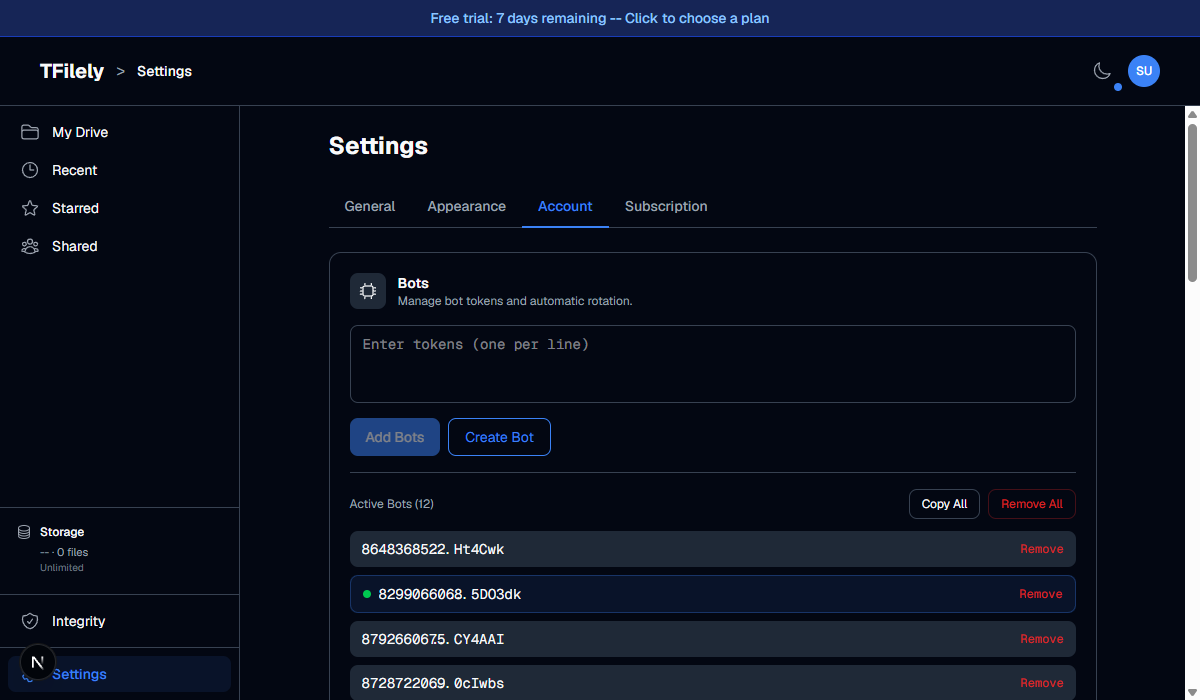
Bots are how TFilely communicates with Telegram. The Account tab shows all your bot tokens and lets you manage them.
| Action | Description |
|---|---|
| Add Bots | Paste one or more bot tokens (one per line) to add them to your pool. |
| Create Bot | Automatically create a new bot by interacting with @BotFather through your connected Telegram account. The process reads BotFather replies and handles rate limits automatically. |
| Remove | Remove a single bot from TFilely and delete it from @BotFather. |
| Remove All | Remove all bots at once. Each bot is deleted from BotFather before being removed. |
| Copy All | Copy all bot tokens to clipboard for backup. |
Auto-Rotate
Below the bot list, the Auto-Rotate section controls automatic bot rotation. When enabled, TFilely switches the active bot at a set interval to prevent any single bot from being rate-limited.
- Toggle -- enable or disable automatic rotation. Enabled by default.
- Interval -- how often (in minutes) to switch bots. Default: 30 min. Click Save after changing.
- Rotate Now -- manually switch to the next bot immediately.
- The display shows the active token number, next rotation countdown, and when the last rotation occurred.
Important: Bot tokens are sensitive. Never share them publicly. Back up your tokens using Copy All before making changes.
Storage Channels
Storage channels are private Telegram channels where your files are stored as messages.
Channel Actions
Three buttons appear in the header of the Storage Channels section:
| Button | Description |
|---|---|
| Sync channels | Scans your Telegram account for channels named storage_* and adds any that are missing from TFilely. Useful when recovering an account or if channels were created outside the setup wizard. |
| Sync bots | Invites all your bots as admins to all storage channels. Run this after adding new bots to ensure they have access to every channel. |
| Create channel | Creates a new private storage channel on Telegram and adds all your bots as admins. |
Channel List
- Each channel shows its name and Telegram channel ID.
- Radio button -- select the default channel where new uploads go.
- Remove -- removes the channel from TFilely. The Telegram channel still exists but files stored in it may become inaccessible.
Auto-Rotate Channels
Works the same as bot rotation. Cycles through storage channels at a set interval to distribute uploads across channels. Default interval: 60 minutes.
Backup
The Backup section sends a JSON snapshot of your file tree to Telegram Saved Messages. This is a structure-only backup containing folder paths, file names, and Telegram message IDs. It does not include the actual file data.
- Auto-Backup -- when enabled, runs a backup every 24 hours when you open the app.
- Export Backup -- trigger a manual backup immediately. The timestamp shows when the last backup was taken.
This backup only saves metadata (folder structure and message IDs). Your files live on Telegram. If you lose access to your Telegram channels, the files cannot be recovered. This backup lets you rebuild the TFilely folder structure if your account metadata is lost.