File Operations
Download, rename, move, copy, and remove files and folders.
Available Operations
| Operation | How | Shortcut |
|---|---|---|
| Download | Right-click > Download, or double-click a file | -- |
| Copy | Right-click > Copy | Ctrl+C |
| Cut | Right-click > Cut | Ctrl+X |
| Paste | Right-click > Paste (after copy/cut) | Ctrl+V |
| Rename | Right-click > Rename | F2 |
| Move | Right-click > Move to | -- |
| Remove | Right-click > Remove | Del |
Rename
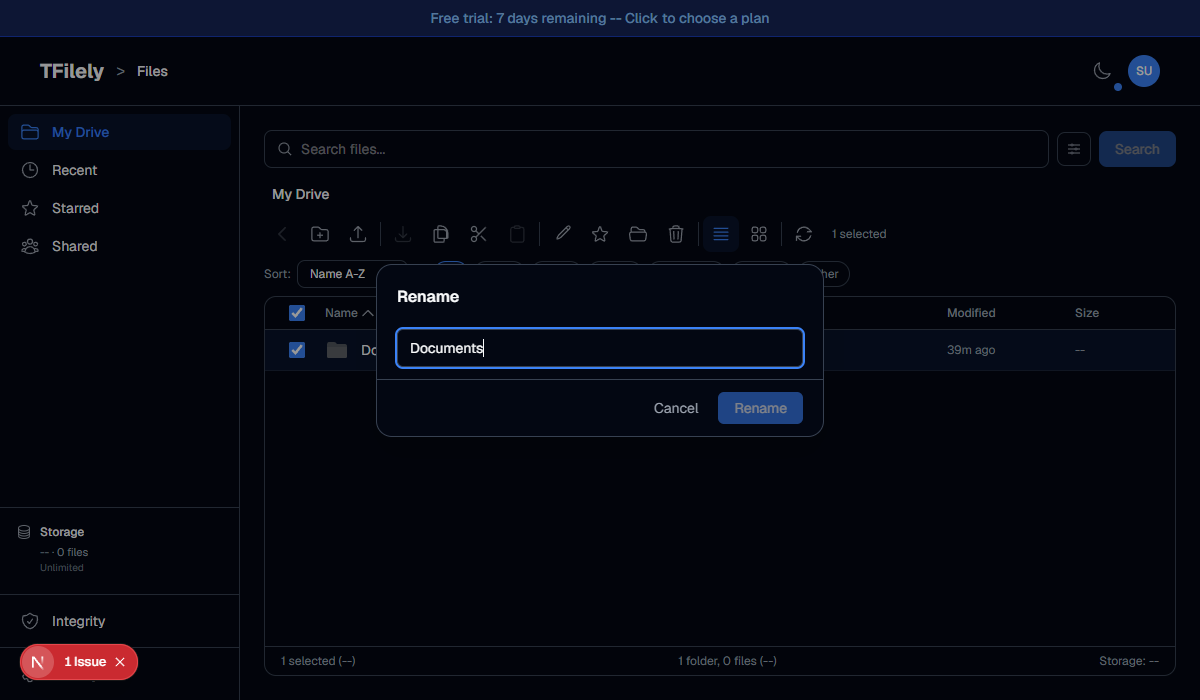
Select a file and press F2 or right-click and choose Rename. Type the new name and press Enter or click Save.
Move
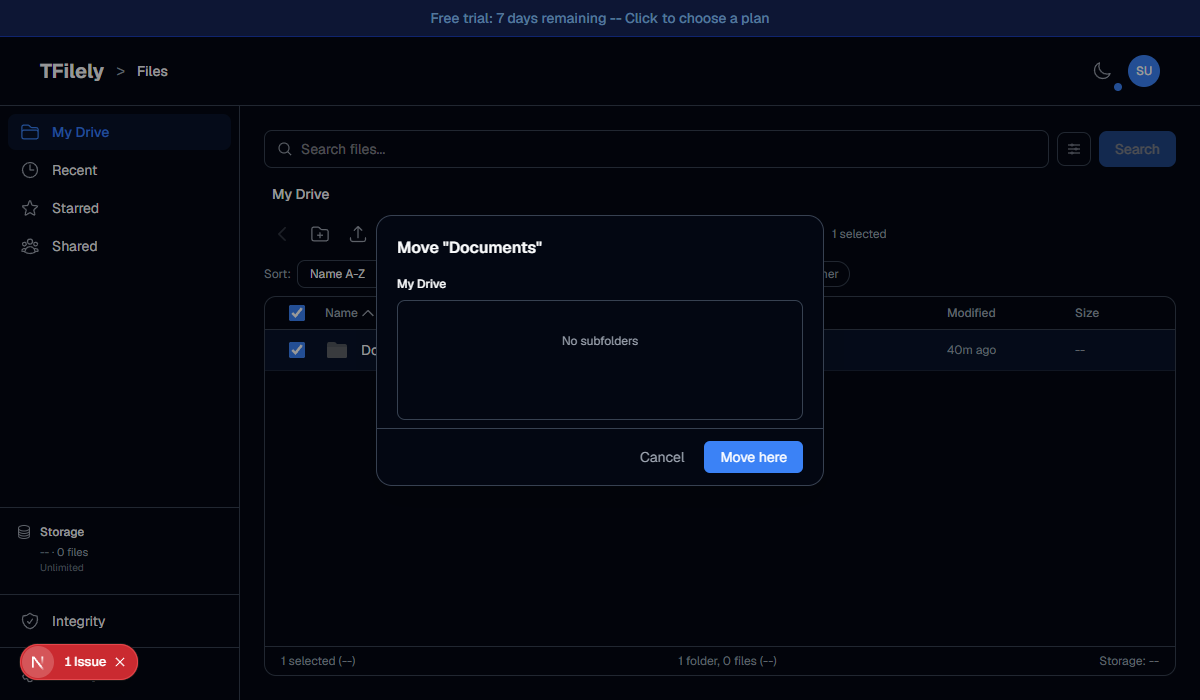
The Move dialog shows a folder tree. Navigate to the destination folder and click Move. You can also use Cut (Ctrl+X) and Paste (Ctrl+V) to move files.
Remove
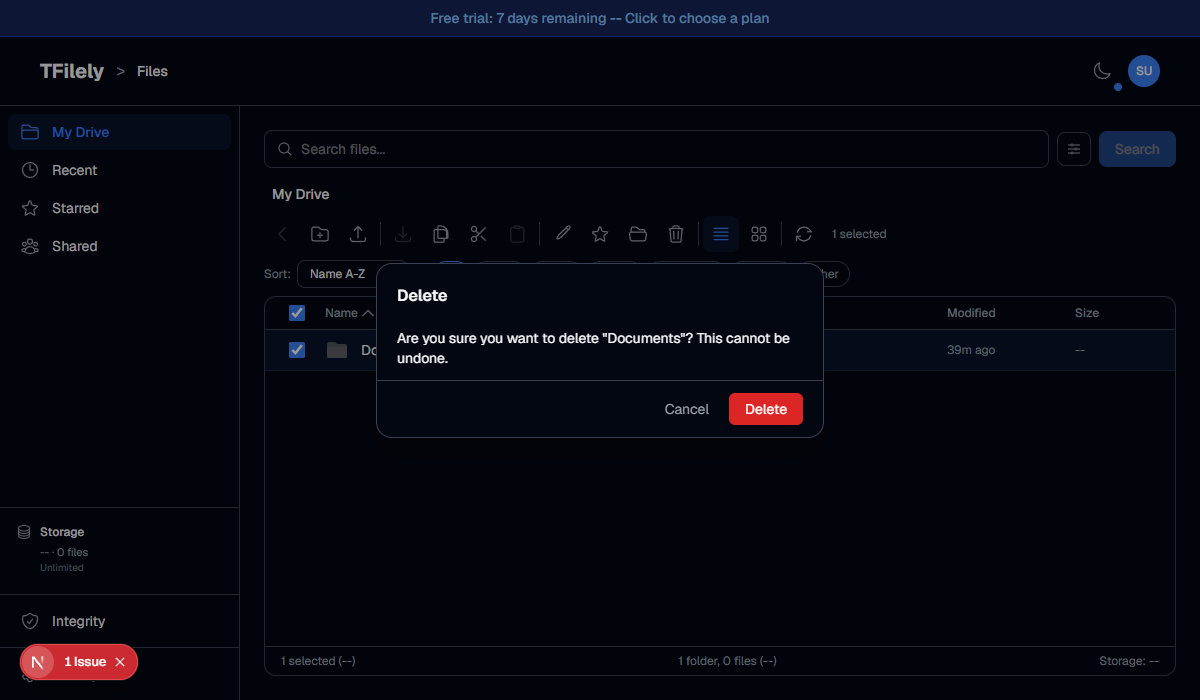
Removing a file deletes it from TFilely and from Telegram. This action cannot be undone. A confirmation dialog will appear before removal.
Copy and Paste
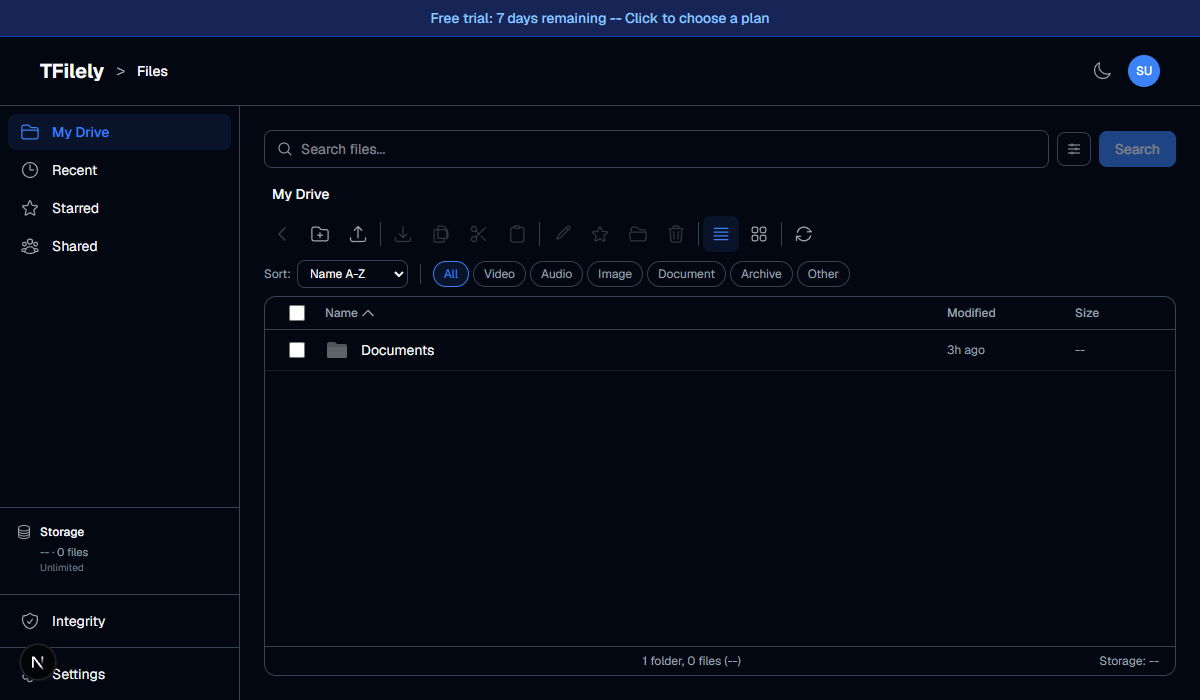
Select files and press Ctrl+C to copy or Ctrl+X to cut. The toolbar shows how many files are in the clipboard. Navigate to the destination folder and press Ctrl+V to paste. If any pasted files have the same name as existing files, a conflict dialog appears. See Duplicate Handling for details.
Multi-select Operations
Select multiple files using checkboxes, then right-click to perform bulk operations. Download, move, and delete all work with multiple selections.