Connect Telegram
Link your Telegram account so TFilely can manage files on your behalf.
Why Connect Telegram?
TFilely stores your files on Telegram. To do this, it needs access to your Telegram account. The connection is used to create bots and channels where your files will be stored. Your Telegram credentials are never stored by TFilely -- only the session is maintained on the backend server.
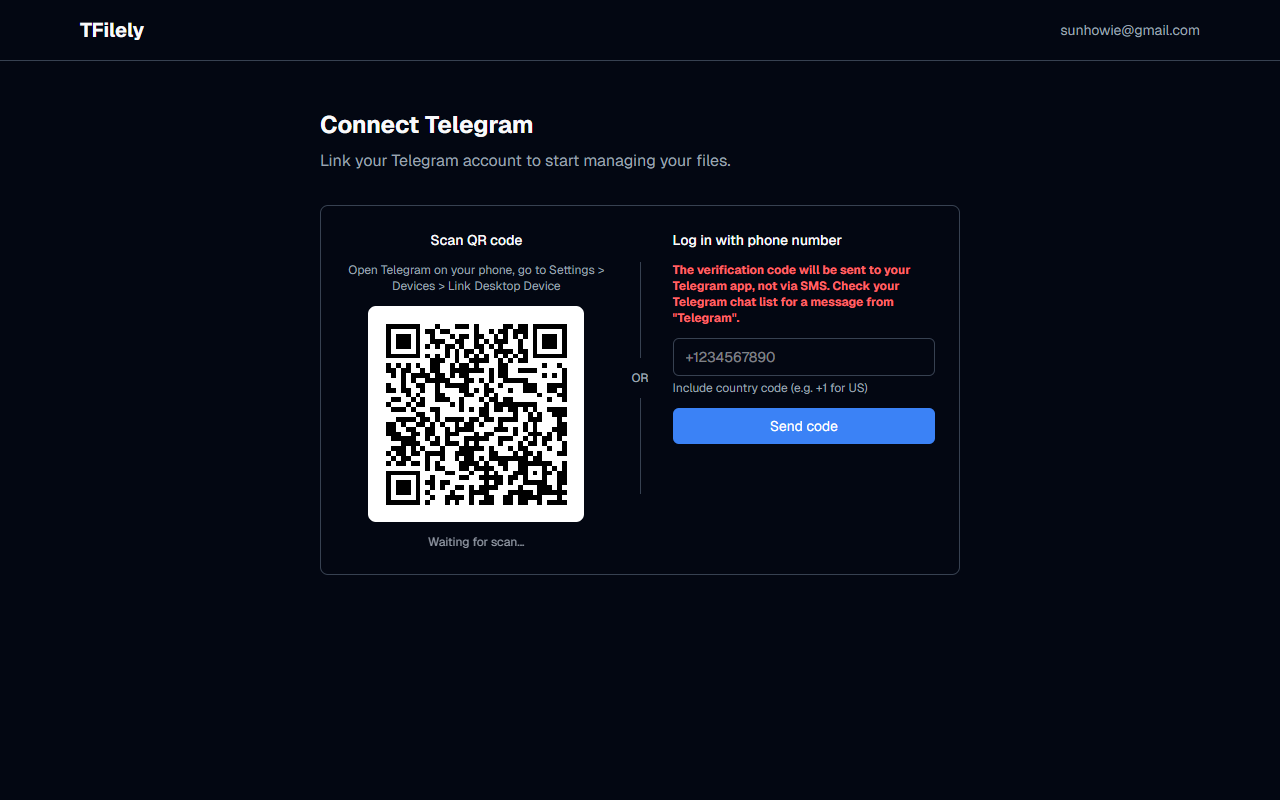
The connect page shows two methods side by side. You can use either one.
Method 1: QR Code (Recommended)
This is the fastest method if you have the Telegram mobile app.
- On the connect page, a QR code will appear on the left side.
- Open the Telegram app on your phone.
- Go to Settings > Devices > Link Desktop Device.
- Scan the QR code displayed on the TFilely connect page.
- Telegram will confirm the login on your phone. Approve it.
- TFilely will detect the confirmation and proceed to the setup wizard.
Method 2: Phone Number
Use this if you cannot scan a QR code. The phone number form is on the right side of the connect page.
- Enter your phone number with country code (e.g., +1234567890).
- Click Send code.
- Open your Telegram app and check your chat list. You will receive a message from Telegram (the official service notifications account) containing a verification code. This is not sent via SMS.
- Enter the code on TFilely and click Verify code.
- If you have two-factor authentication (2FA) enabled on your Telegram account, you will be prompted to enter your Telegram cloud password.
- Once verified, you will proceed to the setup wizard.
Where is the verification code?
The code is not sent via SMS. Open your Telegram app and look in your chat list for a message from the account named Telegram. This is Telegram's official service notifications account. The verification code will be in that message.
Other Notes
- The QR code refreshes automatically. If it expires, a new one will appear.
- If you see a 2FA password prompt, this is your Telegram cloud password, not your TFilely password.