Setup Wizard
The setup wizard creates the bots and channels needed to store your files on Telegram.
Overview
After connecting your Telegram account, the setup wizard appears automatically for new accounts. It creates the infrastructure TFilely needs: Telegram bots (for uploading and downloading files) and storage channels (private channels where files are stored as messages).
The wizard offers two paths: Quick Setup (fully automated) and Manual Setup (step-by-step control). Both produce the same result: a working rotation configuration with bots and channels ready for file operations.
Welcome Page
The welcome page explains how TFilely works and presents the two setup options. It includes warnings about managing bots and channels:
- Do not add other users or third-party bots to your storage channels.
- Do not remove bots or channels directly from Telegram. Always manage them through TFilely settings.
Quick Setup (Recommended)
Quick Setup automates the entire process. It creates 6 bots and 3 storage channels without manual intervention. The process runs entirely in your browser using your connected Telegram session.
How it works
- Scan for existing resources -- TFilely checks your BotFather chat history for previously created bot tokens and scans your Telegram account for existing storage channels (channels named
storage_*). If found, they are reused. - Create bots -- If no existing bots are found, TFilely creates 6 new bots by interacting with @BotFather automatically. A progress bar shows completion status (
1/6 bots,2/6 bots, etc.). - Handle rate limits -- If Telegram rate-limits bot creation, the wizard reads the actual wait time from BotFather and displays a countdown timer. It retries automatically up to 3 times.
- Create channels -- 3 private storage channels are created. All bots are added as admins to each channel.
- Save configuration -- Bot rotation (30 min interval) and channel rotation (60 min interval) are enabled and saved. You are redirected to the dashboard.
Keep the browser open
Bot creation happens in your browser via Telegram. Do not close or refresh the page during Quick Setup. If rate limited, the process will pause and resume automatically.
Manual Setup
Manual Setup walks you through 4 steps with full control over each resource. Use this if Quick Setup fails, if you want fewer or more bots/channels, or if you prefer to add bot tokens manually.
Step 1: Bots
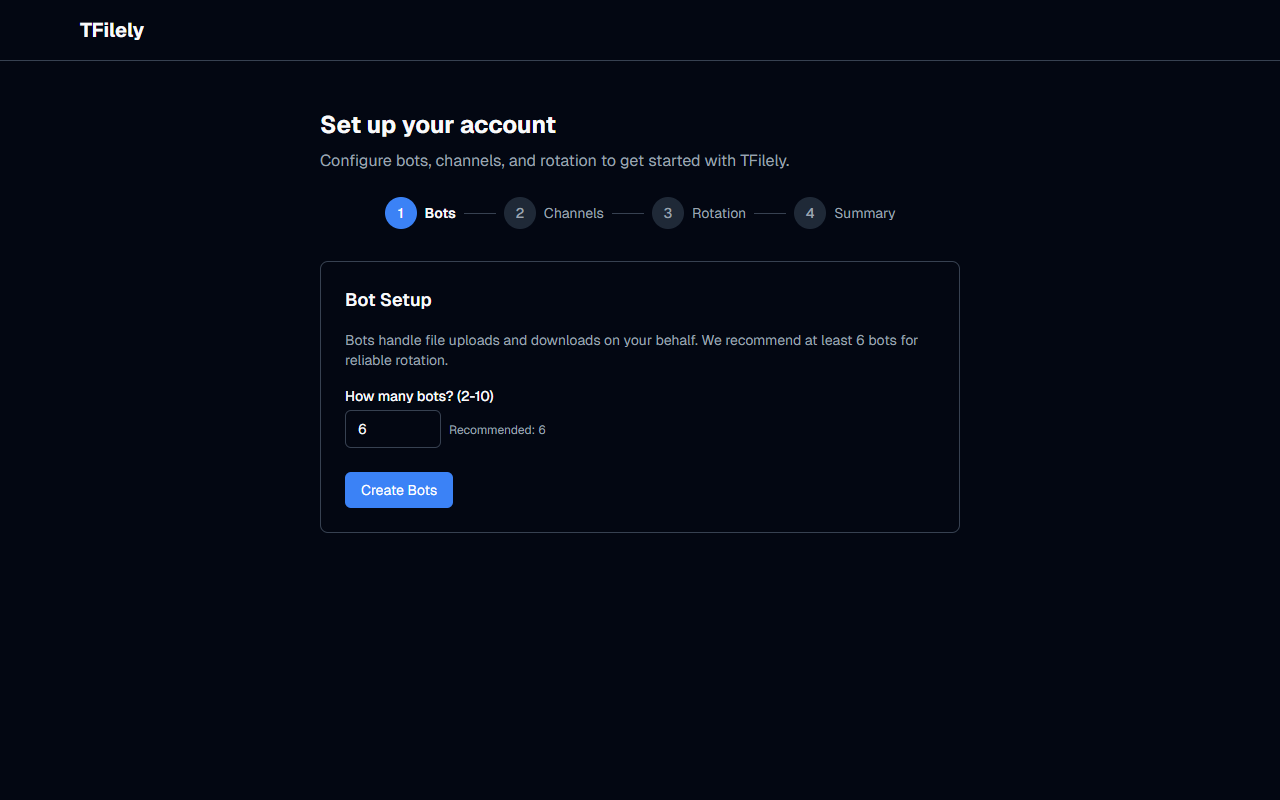
Bots handle file uploads and downloads. You need at least one bot, but 6 or more are recommended for reliable rotation.
Two methods are available:
- Auto-create -- Click the "Create Bot" button. TFilely sends messages to @BotFather on your behalf and creates the bot automatically. If rate limited, the error message shows how long to wait.
- Manual paste -- Open Telegram, message @BotFather with
/newbot, follow the prompts, copy the token, and paste it into the input field. Click "Add Bot" to validate and save it.
Each bot appears in the list with a masked token. You can remove individual bots using the "Remove" button (this also deletes the bot from BotFather).
Step 2: Channels
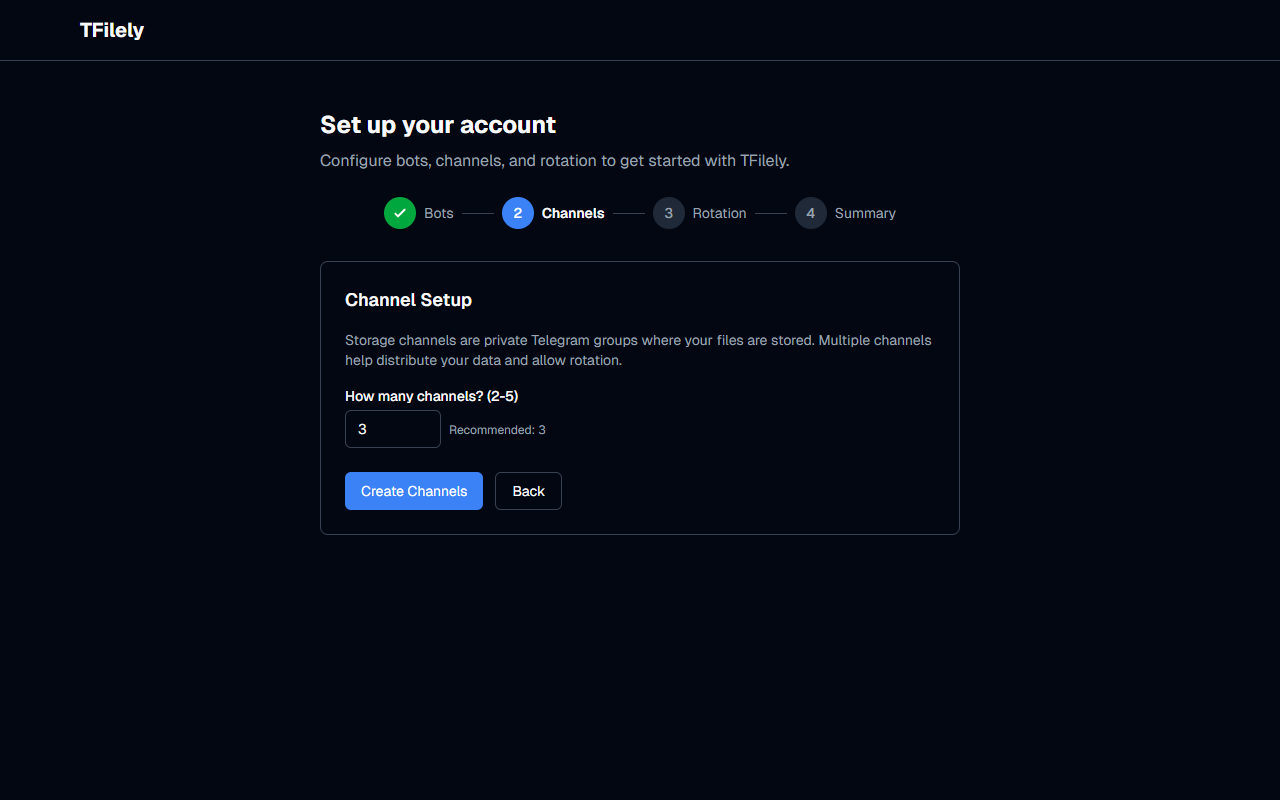
Storage channels are private Telegram channels where your files are kept as messages. Only your bots have admin access.
- The default target is 3 channels. Click "Create N Channels" to create them in batch.
- Each new channel is named
storage_[random]and all your bots are automatically invited as admins. - A progress indicator shows creation status. Channels appear in the list as they are created.
- You can remove channels from the list if needed. You need at least one bot before channels can be created.
Step 3: Rotation
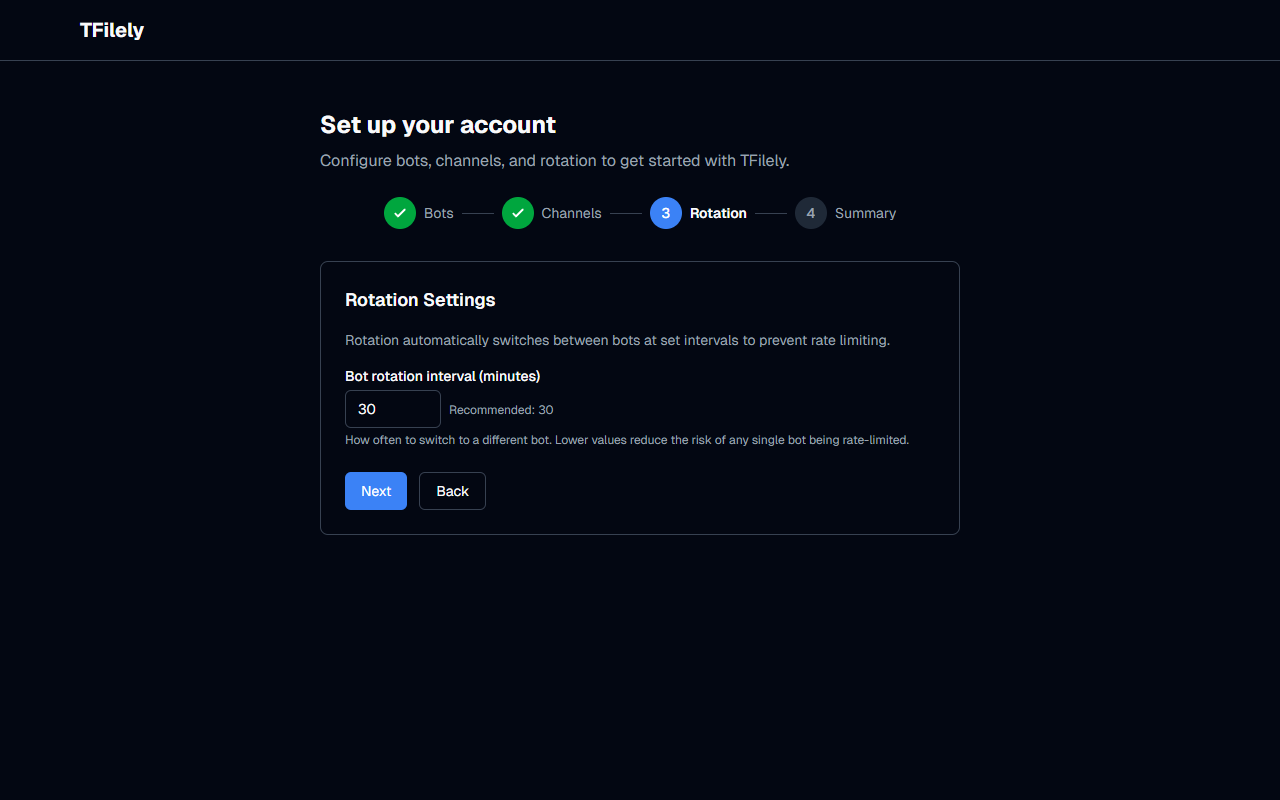
Rotation automatically cycles through your bots and channels at set intervals. This prevents any single bot from being rate-limited by Telegram.
- Bot rotation interval -- How often to switch the active bot. Default: 30 minutes. Range: 5-120 minutes.
- Channel rotation interval -- How often to switch the active storage channel. Default: 60 minutes. Range: 10-1440 minutes.
- Click "Use Defaults" to accept 30 min / 60 min and proceed, or adjust the values and click "Next".
You can change rotation settings later in Settings > Bot Rotation.
Step 4: Review and Finish
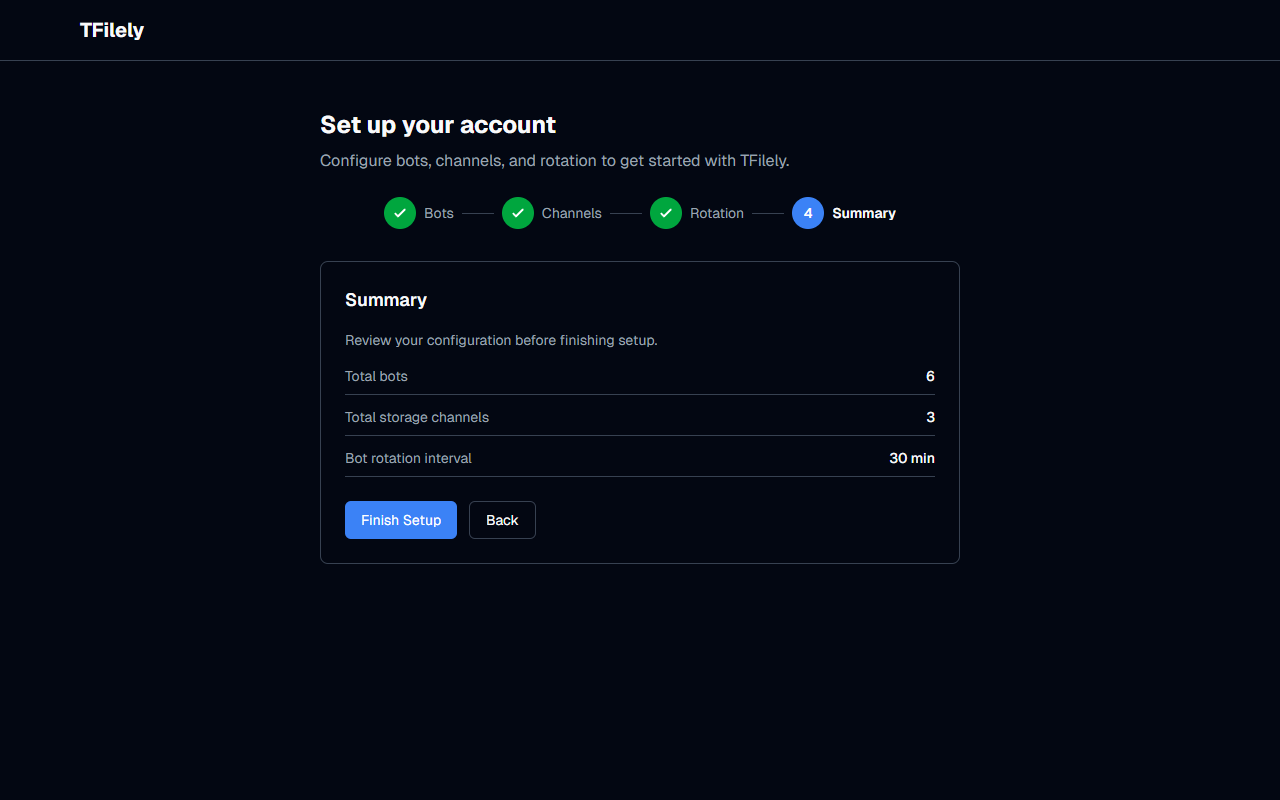
The summary shows your full configuration:
- Total bots
- Total storage channels
- Bot rotation interval
- Channel rotation interval
Click "Finish Setup" to save everything and redirect to the dashboard. Both bot rotation and channel rotation are enabled immediately.
Returning Users
If you previously used TFilely with the same Telegram account, Quick Setup will automatically detect your existing bots and channels:
- Bot tokens are found by scanning your BotFather message history for tokens matching the expected pattern.
- Storage channels are found by scanning your Telegram account for channels with names starting with
storage_. - Found resources are reused without creating duplicates.
Re-running the Wizard
If you need to add more bots or channels later, you can access the setup wizard from Settings > General or manage bots and channels directly from Settings > Account.